
Feature Guide
Everything ArcStax can do — from generating a stack in seconds to swap recommendations, fit scores, and more.
Generate
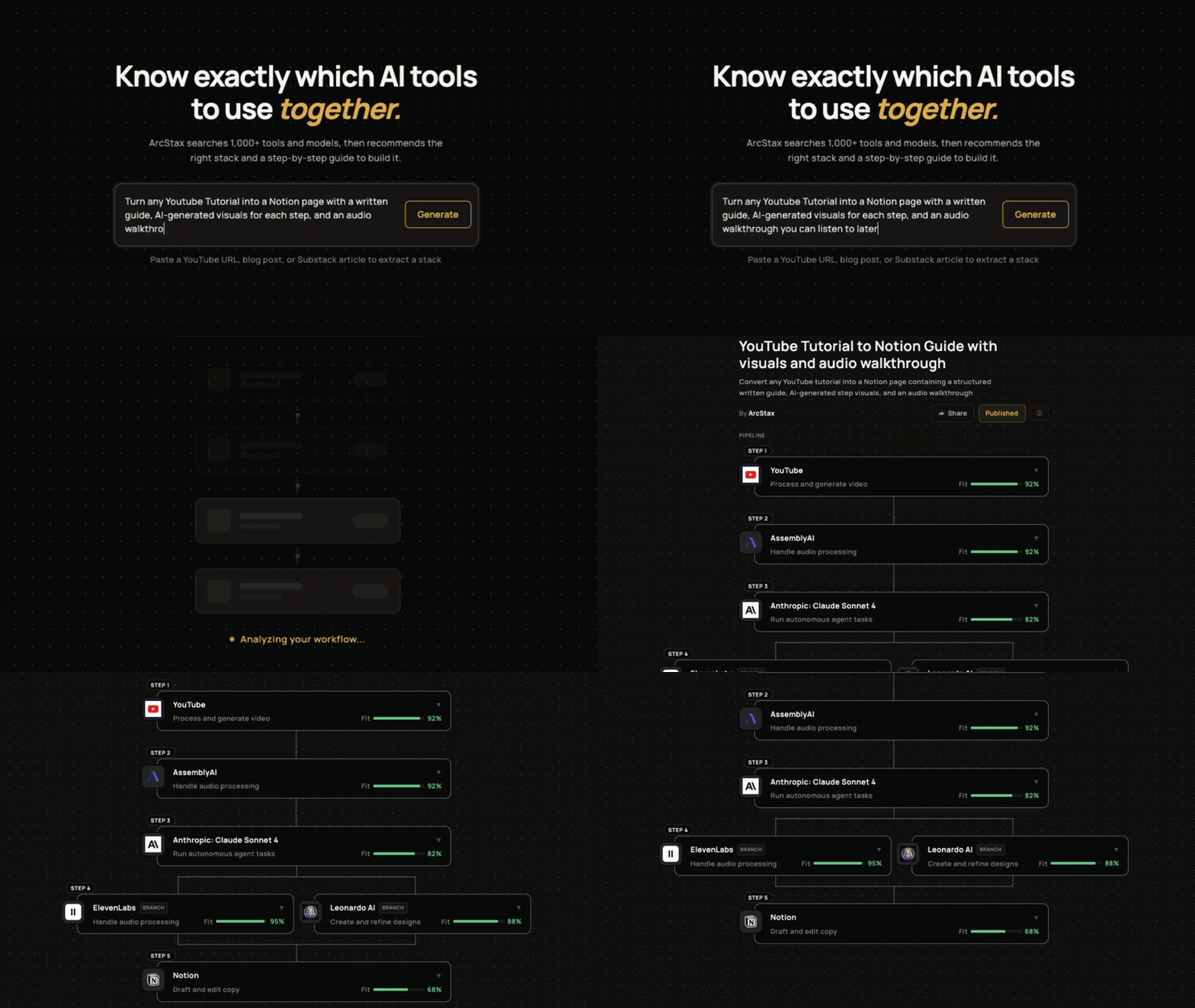
Describe your goal. Get a stack.
Type what you want to build in plain language. ArcStax searches 1,000+ tools and models, then assembles a sequenced stack matched to your project — each tool placed in the right order, with the right role.
- Works for any use case: agents, apps, content, design, vibe coding
- Each tool gets a role label and output description so you know why it's there
- Stack is editable the moment it lands — swap tools, reorder steps, or fork it
YouTube Import
Paste a YouTube URL. Extract the stack.
Found an AI tutorial or creator sharing their workflow? Paste the YouTube URL into the prompt box. ArcStax reads the video transcript, identifies every tool mentioned, and turns it into an editable stack.
- Works with any public YouTube video that mentions tools or workflows
- Extracts tool names, roles, and order from the video's own explanation
- Lands in the same stack view — you can edit, fork, or generate instructions immediately

Stack Guide
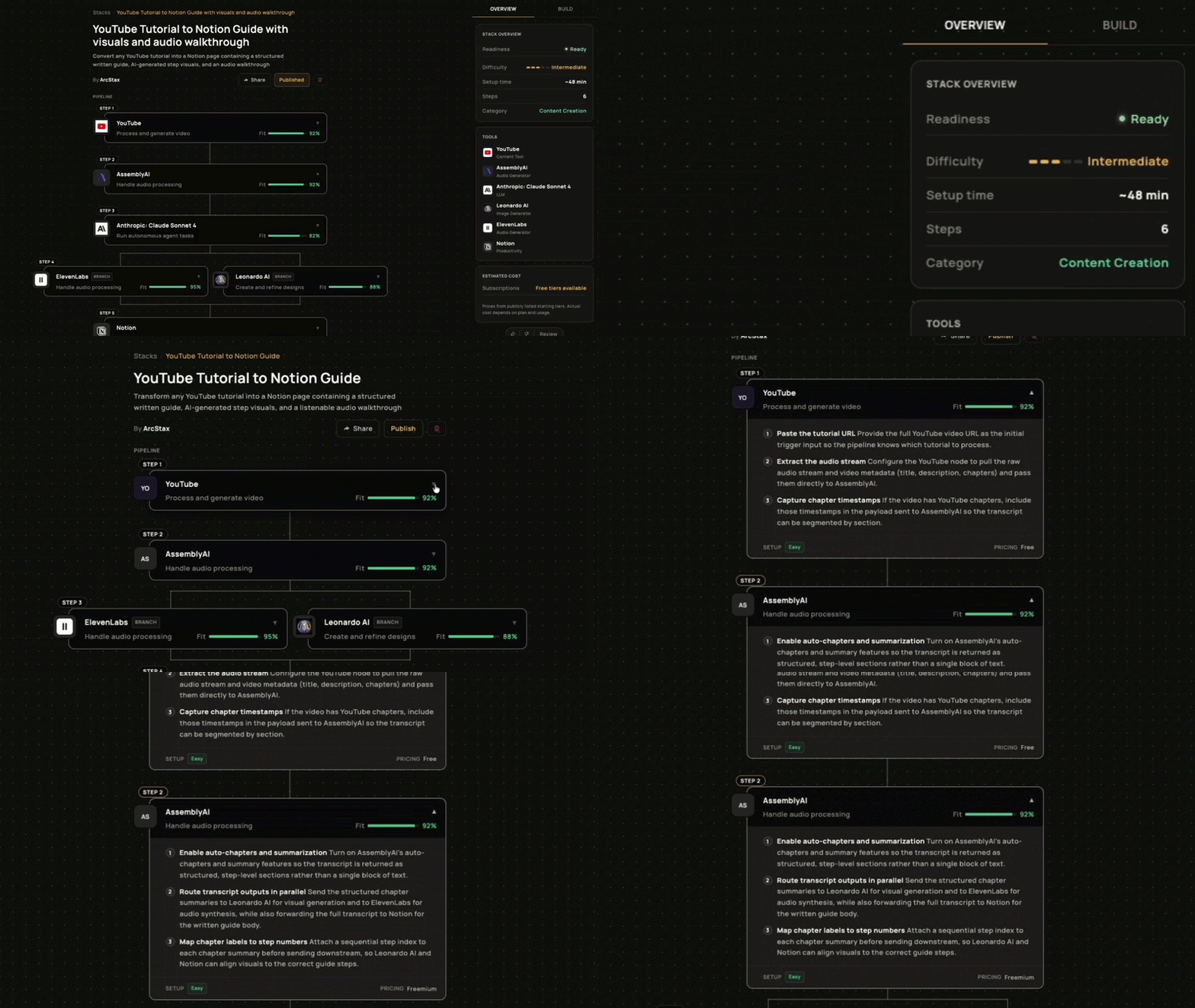
Turn any stack into step-by-step instructions.
Every stack can generate a written guide — specific to your tools and your goal. Instructions are written per node, so you know exactly what to do at each step of the workflow.
- Generate instructions for each tool node individually, or generate all at once
- Instructions are editable inline — fix anything that doesn't fit your setup
- Rate the stack with thumbs up or down — flag issues like wrong tools, overcomplicated, or missing a key tool
- Built something with this stack? Submit a project link in the Guide tab to showcase your work
Stack Editor
Edit every detail. Wire every connection.
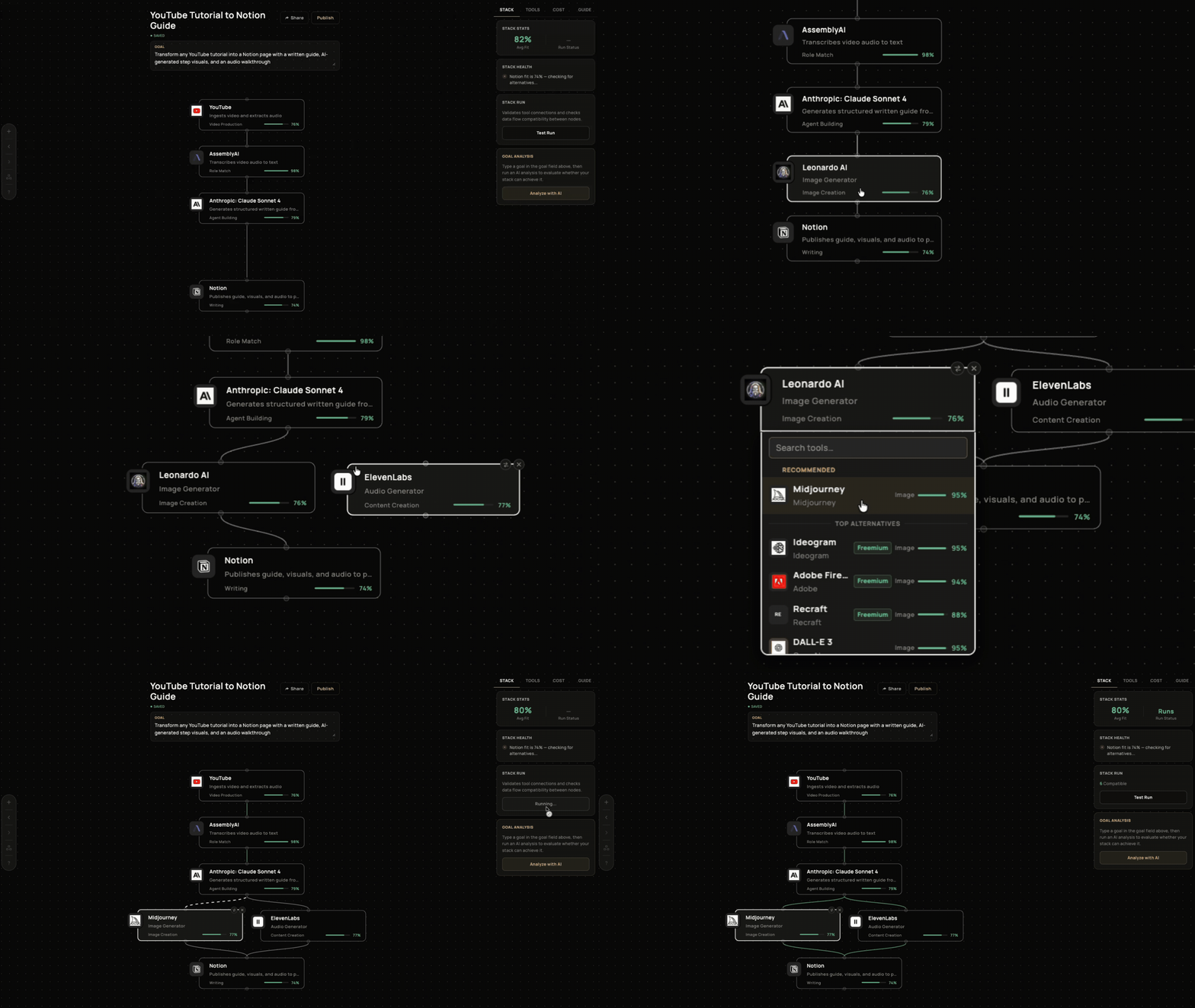
The editor is a visual canvas where you control the full structure of a stack. Drag nodes to reorder steps, draw edges to define data flow, and configure each tool's role and output — or let ArcStax suggest upgrades.
- Four inspector tabs: STACK (health and warnings), TOOLS (fit scores per use case), COST (estimated spend), and GUIDE (instructions + showcase)
- Edit any node: change the role label, update the output description, or rewire its connections to other steps
- Draw pathways between nodes to show how data moves through the workflow — fan-out and fan-in supported
- Swap recommendations: ArcStax flags tools where a better alternative exists and shows you why, with one-click replacement
- Add tools from the full catalog of 1,000+ — search by name, type, or use case and drop them into any step
Stacks
Start from a curated stack.
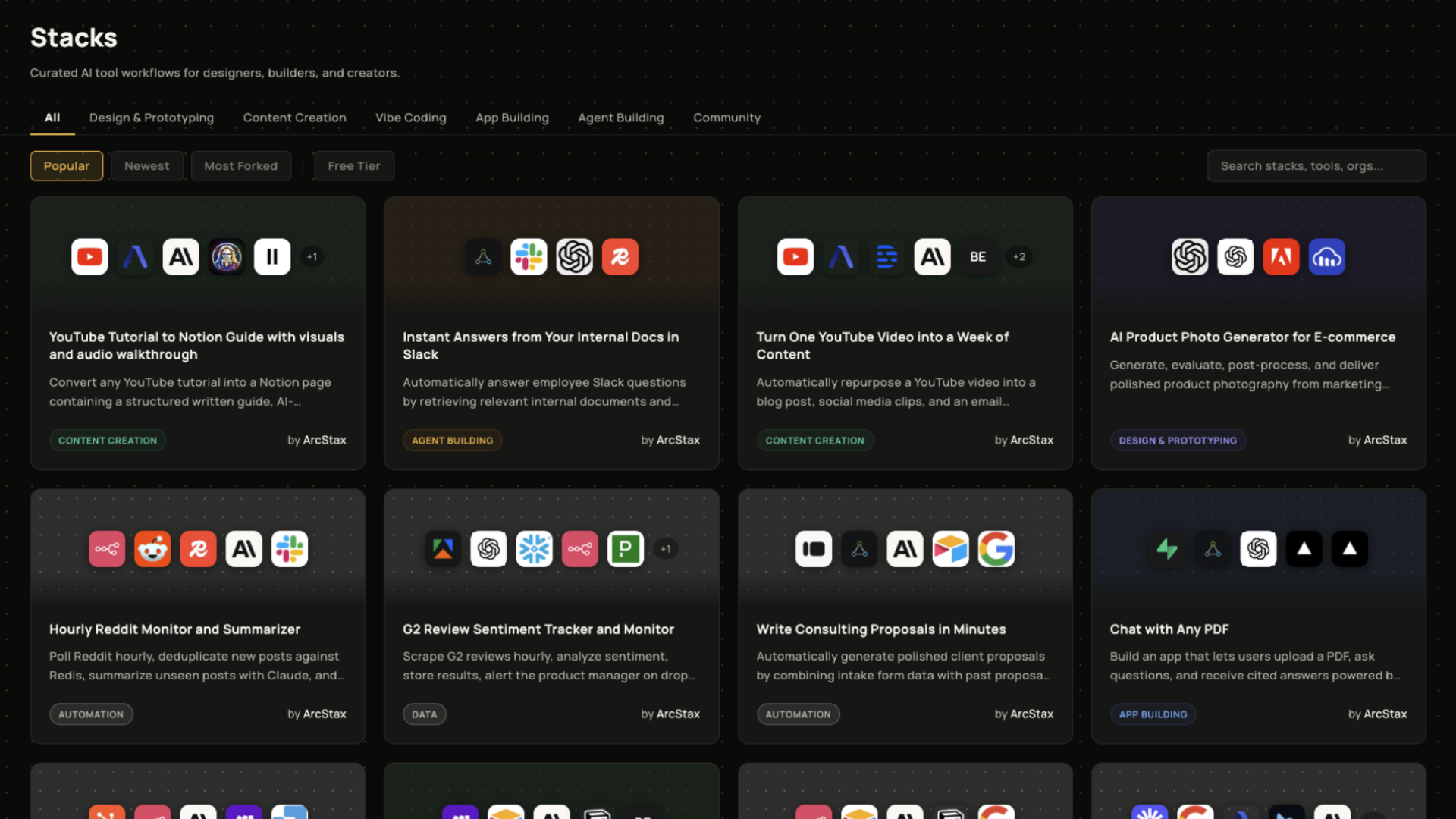
Not starting from scratch? Browse the stack library filtered by use case — design, content, vibe coding, app building, and more. Fork any stack to make it your own.
- Filter by category: All, Design, Content, Vibe Coding, Apps, Agents, Community
- See the tools in each stack at a glance before opening it
- Fork any stack with one click — creates your own editable copy
Tools
Explore 1,000+ tools and track what's moving.
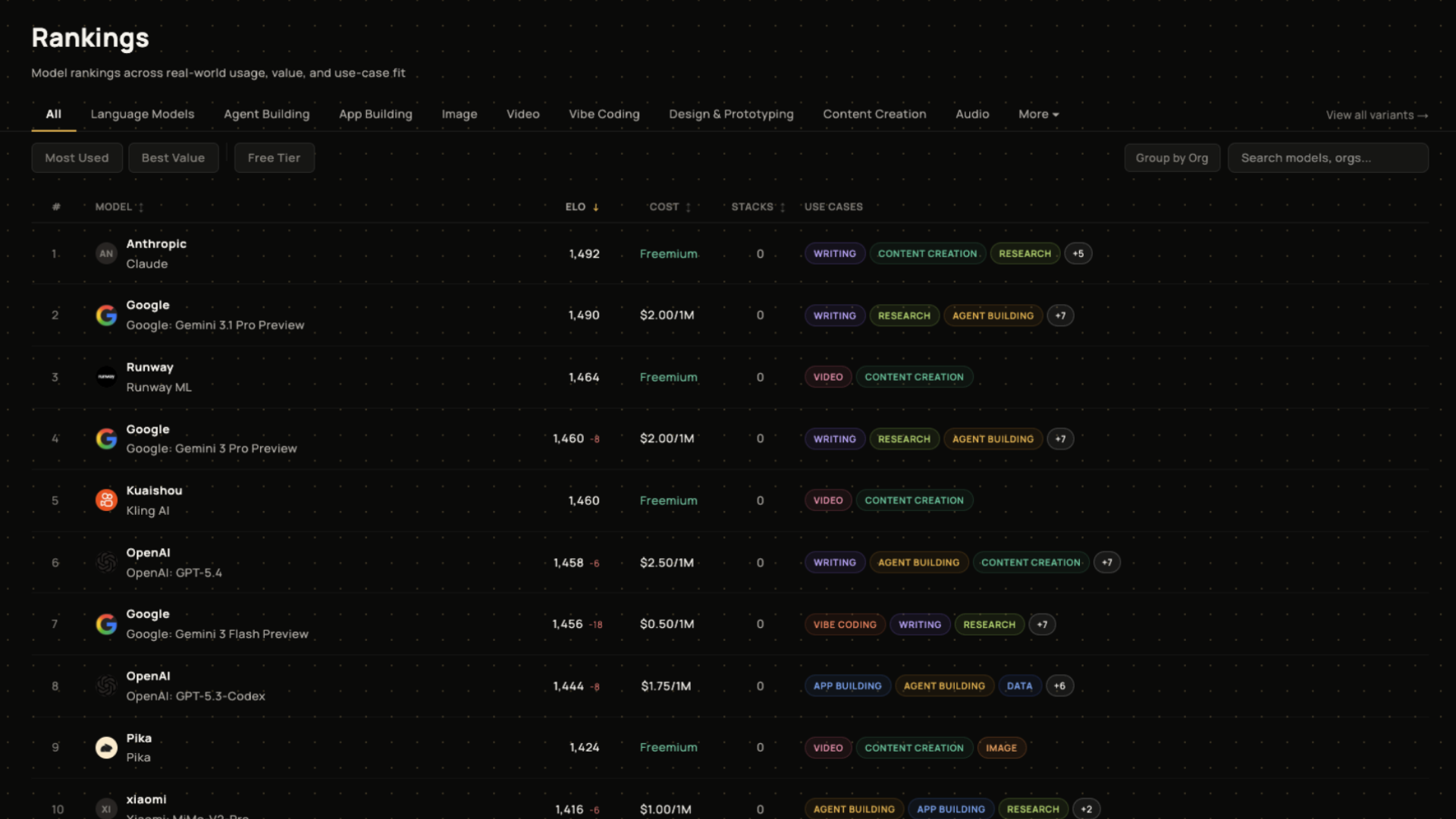
Browse the full catalog of AI models, design tools, dev tools, and automation platforms. The leaderboard ranks models by performance score so you can compare cost, speed, and context window at a glance. The Discover tab surfaces what's worth paying attention to right now.
- Leaderboard: ranked model scores updated regularly — sort by cost per token, speed, or context window
- Trending: models with the biggest positive momentum across rank and community signals
- Climbing and Falling: see which models are gaining or losing ground this week — useful for knowing when to swap
- Click any tool to see its fit scores by use case and category ratings
Dashboard
Your stacks, all in one place.
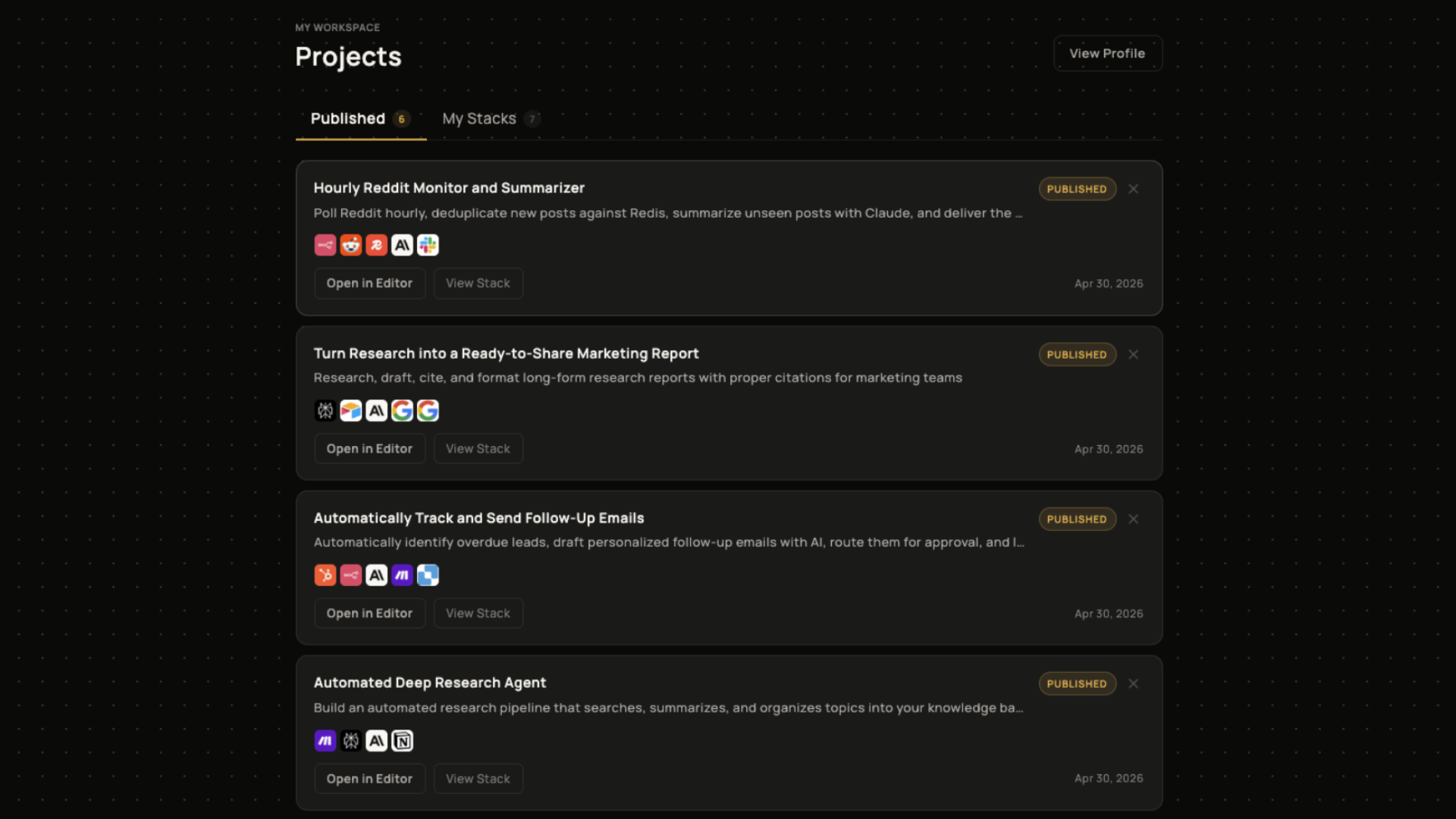
The dashboard collects every stack you've generated, forked, or saved — organized by status so you can pick up where you left off.
- See all your stacks: drafts, active projects, and archived
- Track your usage: generates, instructions, YouTube imports, and AI analysis
- Set your optimization preference — cost, speed, quality, or balance — to bias how ArcStax recommends tools
Ready to build your first stack?
Describe what you want to build and ArcStax will put together the tools in under a minute.
Get Started